How to Clear Shopify Cache in 2026: A Step-by-Step Guide
 By Ana GelevskaAugust 26, 2024 · Updated August 13, 2026
The Fastest Way to Clear Shopify Cache
Open the storefront page that looks wrong and press Ctrl + Shift + R (Windows) or Cmd + Shift + R (Mac). That single hard refresh forces the browser to throw away its saved copy of the page and fetch a fresh one, and it fixes the majority of "my change isn't showing" moments in about two seconds.
If the old version is still there, work down this list:
- Open the same URL in an incognito or private window. A clean session with no saved files tells you within seconds whether the problem is your browser or the store itself.
- Clear cached images and files in your browser settings (Chrome, Firefox, and Safari steps are below).
- Clear it for that one storefront only, so you keep your logins everywhere else. That method is in its own section.
- Still wrong in a private window and on your phone? Stop clearing. At that point the fault is in the theme or an app, and no amount of refreshing will fix it.
Shopify gives you no single "clear cache" button, because copies of your store live in several places at once: your browser, the theme files, and the servers that deliver the store to shoppers. The rest of this guide covers each one, plus how to work out which is actually causing your problem.
Managing a Shopify store involves routine maintenance, and clearing your browser cache is one of those tasks that prevents real problems. A stale cache can cause your store to show outdated content, break layouts after a theme change, or display the wrong product images to customers.
What is a Cache?
A cache is a temporary storage area in your browser that holds copies of web pages, images, and other files. When you revisit a site, the browser loads those saved files instead of downloading everything fresh, which provides a quick speed score. That's the upside. The downside is that cached files can be stale. If you update your Shopify theme or change a product image, a visitor with an old cache might still see the previous version.
Why Should You Clear Shopify Cache?
 Clearing your Shopify cache fixes several categories of problems. Shopify does not automatically clear the browser cache for visitors, so you handle it manually when issues come up.
Most of the time you're clearing cache because something changed and the browser hasn't caught up. After you swap a theme, update product images, or rearrange the homepage, visitors with cached copies keep seeing the old version until the cache expires or they clear it themselves. The same goes for CSS or JavaScript edits that don't show up after you deploy them: a hard refresh or a full clear confirms whether the code actually shipped or you're just looking at stale files. And when an app starts misbehaving after an update or a settings change, its cached data is often fighting the new config, so a clear is the quickest thing to rule out.
It's also the cheapest diagnostic step. If your store isn't loading right in Chrome, Safari, or Firefox, clear the cache before you assume the worst. A fresh load separates a real bug from a local artifact in seconds. Two less obvious cases worth knowing: a cluttered or corrupt cache can actually slow load times instead of helping them, and outdated cached pages can stop analytics tracking codes from firing, which makes your visit counts and conversions look wrong after a site change. If the numbers look off right after a change, run a fresh session on a cleared cache before you trust them.
How to Clear Shopify Cache From Google Chrome
Clearing your cache in Google Chrome is straightforward and can help resolve issues like Shopify not working on Chrome. Here's how:
- Go to settings: Open Chrome, click the three-dot menu in the upper right corner, and select "Settings."
- Go to advanced settings: Scroll down to the bottom of the page and click on "Advanced" to access additional settings.
- Click clear browsing data: Under "Privacy and security," click on "Clear browsing data."
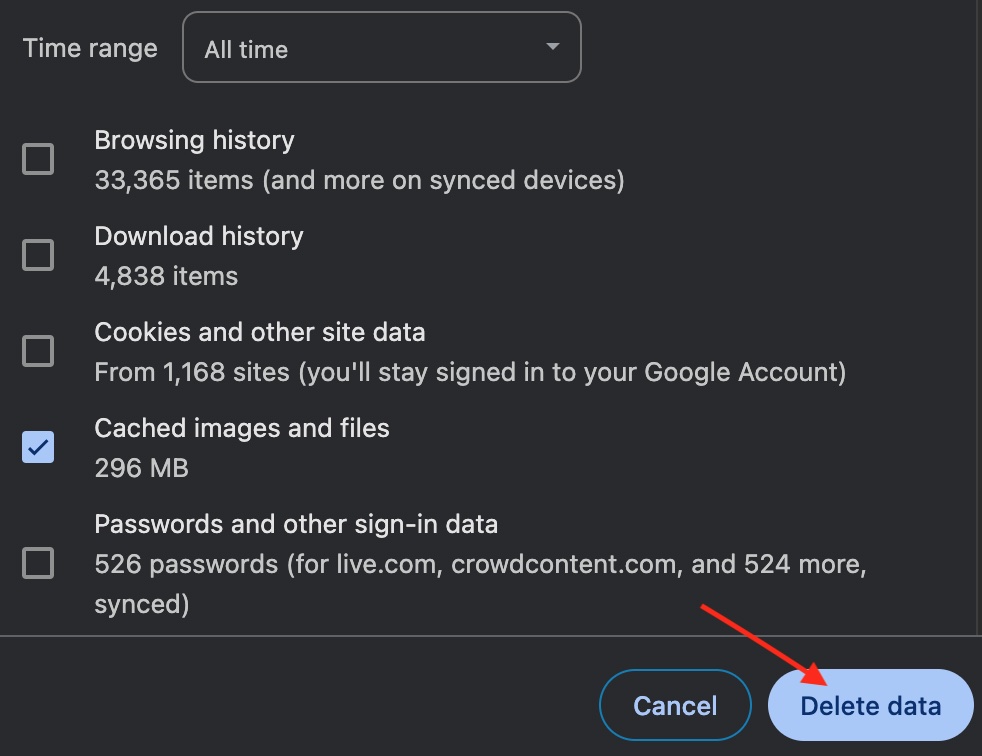
- Choose cached images and files: In the pop-up window, select "Cached images and files." Leave other options unchecked unless you want to clear cookies or history at the same time.
- Click on delete data: Click "delete data" to remove the cache. This may take a few seconds depending on how much has accumulated.
How to Clear Shopify Cache From Firefox
Clearing the cache on Firefox is also worth doing if you're experiencing issues specific to this browser. Follow these steps:
- Go to history: Click on the menu button in the top right corner of Firefox, and select "History."
- Click Clear Recent History: From the dropdown menu, click on "Clear Recent History."
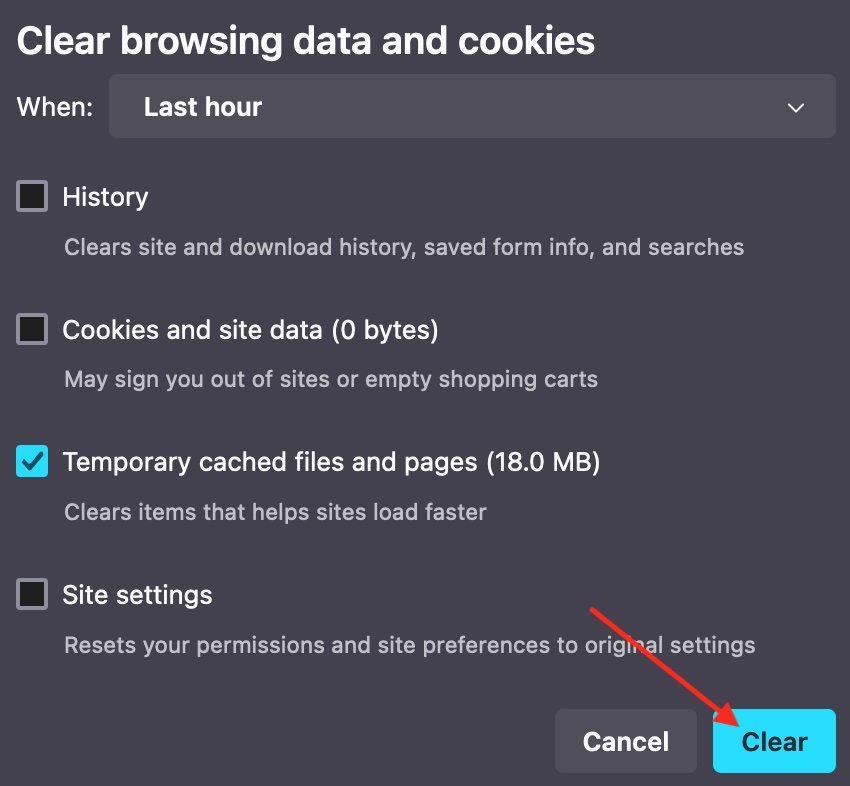
- Click on cache and then clear: In the pop-up window, check the "Cache" box and click "Clear." This deletes all cached files stored in Firefox.
How to Clear Shopify Cache From Safari
Safari users should clear their cache periodically to keep their Shopify store working correctly. Here are the steps:
- Select Preferences in Advanced: Click "Safari" in the top menu, then select "Preferences."
- Click on Advanced: In the Preferences window, go to the "Advanced" tab.
- Click on Show Develop Menu: At the bottom of the window, check the box next to "Show Develop menu in the menu bar."
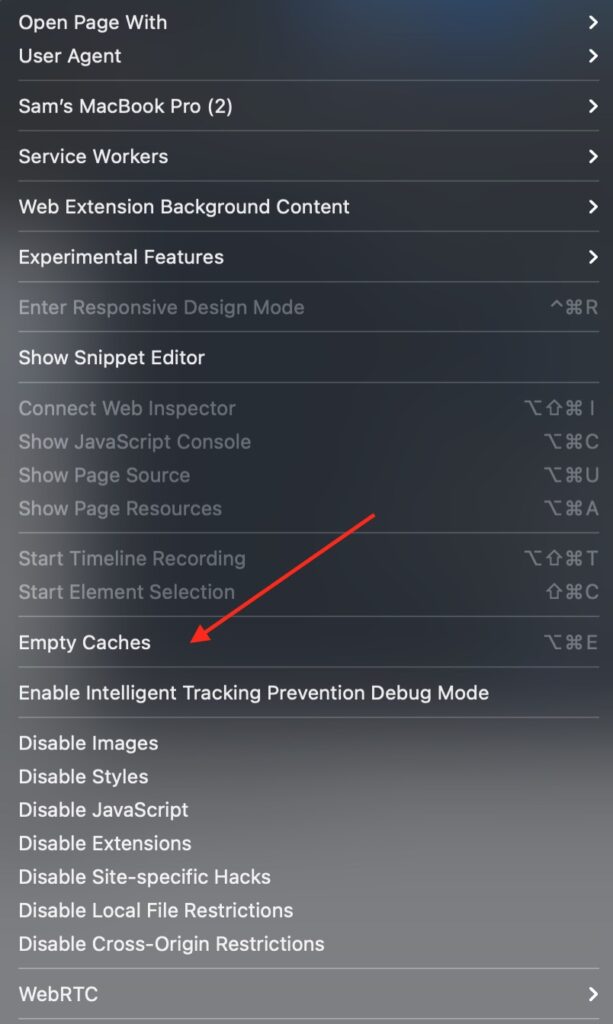
- Click on Empty Cache: Go to the Develop menu and select "Empty Caches" to clear the cache.
Clear the Cache for One Shopify Store Instead of Your Whole Browser
Wiping every cached file signs you out of your admin, your email, and everything else you had open. When you only need one storefront to load fresh, target it directly.
- Chrome. Load the store, click the icon at the left of the address bar, and choose "Cookies and site data", then "Manage on-device site data" and delete what is stored for that domain. Reload the page afterwards.
- Firefox. Open the menu, go to Settings, then Privacy & Security, then "Cookies and Site Data" and "Manage Data". Search for the store's domain, select it, and remove it. Alternatively, right-click the store in your History sidebar and choose "Forget About This Site".
- Safari. Go to Settings (or Preferences), then Privacy, then "Manage Website Data". Search the domain and click Remove.
- Any browser, no settings at all. Open the storefront in a private window. Nothing is reused there, so the page you see is the page a first-time visitor sees. This is the single most useful test in this entire guide, and it takes one keyboard shortcut.
For development work, keep DevTools open with "Disable cache" ticked in the Network tab. Chrome's docs describe that checkbox as disabling the cache for as long as DevTools stays open, which is exactly what you want while you are pushing theme edits (Chrome DevTools network reference). One caveat: it only applies to your own browser with the panel open, so it proves nothing about what shoppers are seeing.
Your Theme Change Still Does Not Show: What to Check Next
You saved a theme edit, you cleared everything, and the storefront still shows the old version. Run through these in order, because roughly this is the order they go wrong.
- Confirm you edited the published theme. Under Online Store, then Themes, only the theme at the top of the page is live. Edits made in a duplicate, an unpublished draft, or a theme preview link do not touch what shoppers see, and this catches more people than caching does.
- Check whether the change is in the theme editor or the theme code. Section and block changes made in the customizer need Save, and code edits need Save on each file. A file left unsaved in another tab is a change that never shipped.
- Force the store's server-side copy to refresh. Shopify caches theme output on its own delivery network, and it usually catches up within minutes. If a page is stubborn, open the theme code, add a blank line to
theme.liquid, save, remove it, and save again. Re-saving the layout file is enough to make the storefront serve a fresh render. - Look at the right URL. A change on the primary domain will not appear on the
myshopify.comaddress if you are actually viewing a cached copy of the other one, and vice versa. Pick one address and test on it consistently. - Test on a different device and network. Your phone on mobile data shares nothing with your desktop: no saved files, no extensions, no DNS entries. If the change appears there, everything left to fix is local to your machine.
- Turn off browser extensions. Ad blockers, currency converters, and page-modifying extensions rewrite storefronts constantly, and their edits look exactly like a broken theme.
If all six pass and the page is still wrong, you are no longer looking at a caching problem.
Cache, Theme, or App? How to Tell Them Apart
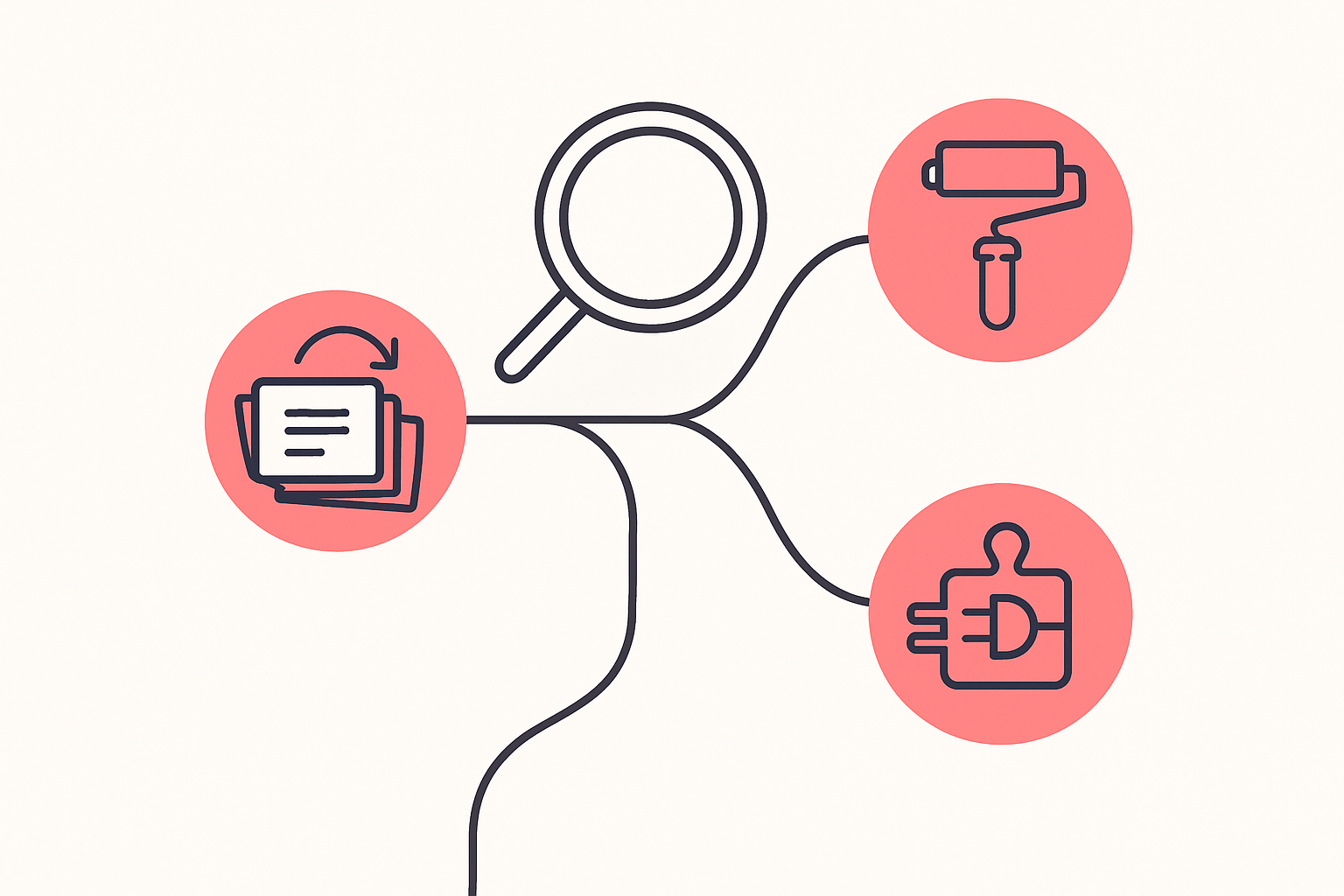
Most people searching for a way to clear the Shopify cache are actually trying to answer a different question: why does my store look wrong? Cache is one of three answers, and there is a quick test that separates them.
Open the page in a private window on a device that has never visited the store. Then read the result:
| What you see | What it means | Where to fix it |
|---|---|---|
| The page is correct | Stale saved files on your own machine | Clear the cache, as above. Shoppers are fine. |
| The page is wrong everywhere, and only certain sections are affected | The theme, or a section setting in the published theme | Online Store, then Themes, then Edit code or Customize |
| The page is wrong and something is injected, duplicated, or missing entirely | An app writing to the storefront | The app's own settings, or uninstall and re-check |
Point three is where merchants lose hours. An app can inject scripts, override styles, and replace a whole section, so a change you made in the theme gets silently overwritten on every page load. Nothing in your admin announces this, and clearing your cache twenty times will never reveal it.
The fast way through is to look at what is actually live on the storefront. Koala Inspector reads any Shopify store's active theme and its full installed app stack in one click. Both checks are free features of the extension rather than trial features, so there is no card to enter (see the listing on the Chrome Web Store). Open it on your own store and you get two answers immediately:
- The theme name it reports is the theme genuinely being served. If that is not the theme you have been editing, you have found your problem, and no cache clear was ever going to solve it.
- The app list shows every app that could be touching the page. Cross-reference it against what you have installed recently. An app added the same week your layout broke is the first thing to test by disabling.
It works on any store, not only your own, which is why the same Shopify theme detector and app detector get used for competitor research the rest of the time. For troubleshooting, the value is simply that it tells you the truth about the live storefront in seconds rather than after an afternoon of refreshing.
What merchants say about Koala Inspector
Verified reviews from the Chrome Web Store.
“Super simple to use and gives tons of detail of other stores. It helped me learn how to improve my store.”
 Jessica Walker
“Awesome customer support. Insights into store AOV, products, traffic and campaign tracking is extremely helpful!”
 Gabe Abramovich
“Invaluable for competitive insights, Koala Inspector is easy to navigate and helps stay ahead in the Shopify marketplace.”
 Merico Monaldo
How Browser Caching Works for Shopify
Browser caching speeds up load times by storing static files locally. The trade-off is that those stored files can go stale when you make changes to your Shopify store: updating themes, modifying product images, adding new features, or running time-sensitive promotions.
Understanding that trade-off helps you manage it better:
- Adjust cache settings where possible: Some Shopify apps and CDN configurations let you control cache expiry times. Shorter expiry windows mean visitors pick up changes faster.
- Clear on a schedule: If your store changes frequently, build cache clearing into your post-deployment checklist rather than waiting for a problem to appear.
- Use browser developer tools: Chrome's Network tab has a "Disable cache" checkbox that you can enable while DevTools is open. Useful for development and testing without clearing the cache permanently.
How to Delete Your Cache on Shopify
Alongside your browser, two other layers hold copies of your store, and each has its own reset.
Theme cache. Themes and Shopify's delivery network cache rendered output to keep pages fast. Re-saving theme.liquid (add a blank line, save, remove it, save again) forces the storefront to render the current version, which is the fix after switching theme versions or editing custom code.
Third-party app cache. Apps cache their own data. If an app misbehaves after you change its settings or it updates, clear its cache from the app's own settings panel where one exists, then reload the storefront in a private window to confirm.
How Often Should You Clear Cache in Shopify?
 There's no fixed schedule. How often you clear depends on how actively you're changing the store and how much traffic it gets. The trigger is almost always a change, not the calendar.
Clear it right after anything that alters what visitors see: a new theme, a layout redesign, a Shopify 2.0 migration where the page structure shifts substantially, or a code deployment with new scripts or backend changes. Same when you add or remove an app, since both can leave stale data behind that conflicts with the new setup. If you're testing a new app or custom script, start from a cleared cache so you're checking the live state of the site and not a leftover from the previous version. And if changes you've made aren't showing up on the frontend (wrong images, old text, misaligned elements), cache is the first thing to suspect.
The one scheduled case worth planning around is high-traffic events. Sales and seasonal peaks generate more cached data, so clearing before and after Black Friday, Cyber Monday, or a holiday push starts the period clean and makes sure customers see current offers rather than a cached promo that already ended.
Troubleshooting Cache Issues
 If problems continue after clearing your cache, check these things:
- Test in multiple browsers: Some issues are browser-specific. If the problem disappears in one browser but not another, you're likely dealing with a browser bug or extension conflict rather than a Shopify issue.
- Remove unused JavaScript: Excessive or outdated JavaScript can slow down your store independently of cache. Removing unused scripts reduces page weight and potential conflicts.
- Contact Shopify Support: If the problem persists across browsers and after a fresh cache clear, Shopify's support team or your theme developer can dig into the specifics.
Shopify cache and store questions people ask
Are Shopify and Myshopify the same?+
They are the same store, reached by two different addresses. Every Shopify store gets a permanent myshopify.com address when it is created, and shopify.com is the platform's own company site. Merchants then connect a custom domain that visitors see instead, while the myshopify.com address keeps working underneath and is what tools and apps identify the store by.
Are Shopify point of sale payments secure?+
Yes. Shopify POS runs on the same PCI DSS compliant payment infrastructure as Shopify's online checkout, card data is encrypted at the reader, and full card numbers are never stored on the device. Keep the POS app and reader firmware updated, and give staff their own logins with limited permissions so refunds and discounts stay traceable.
Are Shopify theme detectors free to use?+
Koala Inspector's theme detector is free, with no trial and no card. Install the Chrome extension, open any Shopify store, and it names the active theme, including paid and custom themes, with a link to that theme in the Shopify theme store. The app detector that lists the store's installed apps is free too, which is what makes it a practical first check when a change is not showing.
Are you ready to upgrade to Shopify Plus?+
You are ready for Shopify Plus when volume and complexity, rather than ambition, are the bottleneck: high order counts, several storefronts or currencies, wholesale alongside retail, or a need for checkout customisation and API limits the standard plans cap. If your store runs comfortably on Basic or Advanced and your caching questions are still about browser refreshes, the upgrade will not pay for itself yet.
Can I make $10,000 per month dropshipping?+
It is possible and it is uncommon. Ten thousand dollars a month in revenue means a working product, ad creative that converts, and margins that survive shipping and returns, which usually takes months of testing rather than one lucky product. Study stores already doing that volume before you build: Koala Inspector shows the products, apps, and theme behind any Shopify store, so you can copy a proven setup instead of guessing.
Can I use my own domain name with Shopify?+
Yes. Buy a domain through Shopify or connect one you already own from another registrar, then set it as the primary domain so visitors always see it. The myshopify.com address stays live and redirects. After a domain change, clear your cache and reload in a private window, because your browser will otherwise keep serving pages from the old address.
One Last Thing
Build one habit from this guide: when you deploy a change and it doesn't show up, open the page in a private window before you touch anything else. Thirty seconds there tells you whether you are looking at a stale copy on your own machine or a real fault in the published theme, and it saves you from chasing bugs that were never there. When the private window says the storefront itself is wrong, install Koala Inspector and read the live theme and app list for free before you start editing code.
Written by
Ana Gelevska
eCommerce Content Writer
Ana Gelevska is a content writer with more than five years of experience creating content for eCommerce brands and global clients. She digs into each topic and the people it is for, then turns it into clear, useful articles that Shopify sellers and dropshippers can act on.
Connect on LinkedIn