What Is Shopify 2.0: Everything You Need To Know and Why You Should Upgrade
 By Ana GelevskaJune 6, 2025 · Updated June 4, 2026
Shopify 2.0 (also called Online Store 2.0) is a redesigned theme architecture that Shopify shipped in June 2021. The short version: sections and content blocks are now available on every page, not just the homepage. Metafields are manageable from the admin without apps. Themes connect to GitHub and load cleaner code. This guide covers what changed, what stayed the same, and how to move your store over.
What Is Shopify 2.0?
Shopify 2.0 is the name for the updated theme architecture Shopify released at Shopify Unite 2021. Before 2.0, "sections" (the drag-and-drop content blocks you edit in the theme editor) only worked on the homepage. In 2.0, every page type gets them: product pages, collection pages, landing pages, blog posts. That single change unlocks a lot: you can now build a custom product page layout in the editor rather than writing Liquid code by hand.
The architecture also introduced:
- App blocks - apps can add content to your theme from inside the editor, no more pasting
<script>tags into Liquid files - Native metafields in the Shopify admin, so you can add custom product data (material, size guide, warranty) without a third-party app
- GitHub integration for theme development, so developers can use version control and collaborate with pull requests
- JSON templates instead of Liquid templates, making it easier to store section settings as data rather than hardcoded markup
When Was Shopify 2.0 Launched?
Shopify announced Online Store 2.0 at its annual developer conference, Shopify Unite, in June 2021. The free Dawn theme shipped as the first official 2.0 theme and now serves as the reference implementation for developers building 2.0-compatible themes.
Is Shopify 2.0 Faster?
Generally yes, but it depends on the theme and how many apps you install. 2.0 themes load fewer scripts by default because apps use app blocks inside the theme (which only load on pages where they're needed) rather than injecting scripts globally across every page. That targeted loading reduces JavaScript overhead on pages where an app isn't active.
The Dawn theme itself is lightweight by design. In speed tests of popular Shopify themes, top-performing themes score above 95 on Lighthouse mobile and load in under 2.5 seconds; Dawn typically lands near the top of that range. But installing many apps or picking a feature-heavy paid 2.0 theme can still produce slow scores, so page speed is not automatic.
Shopify 2.0 vs Shopify 1.0
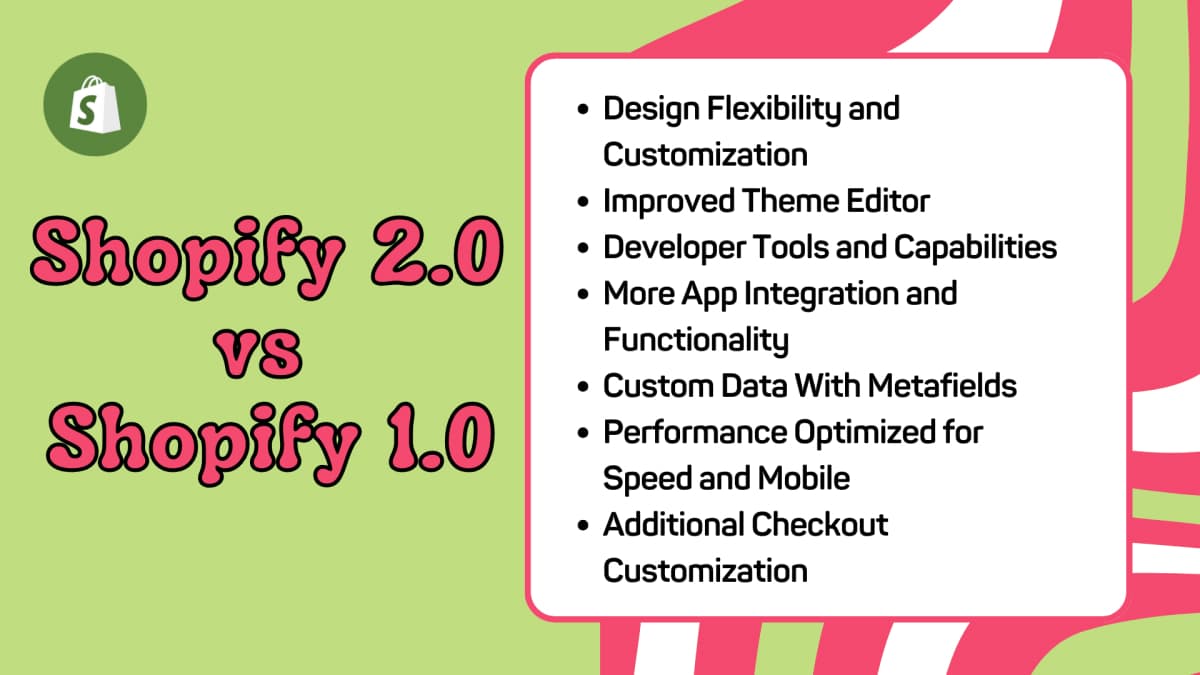
The core difference is where sections work. In Shopify 1.0, sections and blocks only applied to the homepage. Everything else required custom Liquid code or workaround apps to add dynamic content. In Shopify 2.0, sections work everywhere.
| Feature | Shopify 1.0 | Shopify 2.0 |
|---|---|---|
| Theme Architecture | Page-based | Section-based |
| Sections | Homepage only | All pages |
| Content Block Types | Limited (text, basic image) | Diverse (text, image, video, product grids, testimonials, etc.) |
| Theme Editor | Code-heavy editing | Drag-and-drop with live preview |
| App Sections | Cannot embed apps within content | Apps integrate directly within sections |
| Metafields | Required apps or custom code | Native admin UI; works across products, collections, pages |
| Mobile Optimization | Varies by theme | Required for Official Theme Store listing |
| Development Workflow | Manual file edits | GitHub-connected, JSON templates |
Design Flexibility and Customization
With 1.0, the homepage could look polished but the product page was locked to whatever the theme shipped with. Merchants who wanted a custom layout on product or collection pages had to hire a developer or install page builder apps that added their own overhead.
In 2.0, that gap closes. You can add a custom "Trust badges" section to your product template, build a collection page with a promotional banner block, or drop a testimonial strip onto your About page - all from the theme editor, without touching code.
Theme Editor
The 1.0 editor was functional but limited. Adding anything beyond colors, fonts, and a few preset options meant opening the Liquid files and editing code directly. The 2.0 editor previews changes live, supports drag-and-drop reordering within sections, and lets you add or remove blocks without touching code. The gap matters most for merchants without a developer on call.
Developer Tools and Capabilities
1.0 themes lived entirely inside Shopify's file editor, with no version control. 2.0 themes can connect to GitHub, so a development team can work on a theme branch, review changes via pull requests, and deploy with a merge. For agencies managing multiple client stores, that workflow saves significant time.
The Storefront API and theme extension APIs also expanded with 2.0, which is why modern apps (like loyalty programs, upsells, and review widgets) can embed directly into the page layout rather than floating as overlays.
Custom Data With Metafields
Before 2.0, storing custom product data - a material composition field, a care instruction block, a "best for" attribute - meant either a third-party metafield app or custom Liquid. In 2.0, you define metafields directly in the admin under Settings > Custom data, and then expose them anywhere in your theme using the metafield picker in the editor. No app required for basic use.
This is practically useful for stores with product catalogs that need more than the default title/description/price fields.
Performance Optimized for Speed and Mobile
1.0 themes could get heavy fast because every app that injected scripts did so globally (every page, every visitor). 2.0 app blocks target only the templates that need them. That scope reduction is the main structural speed improvement.
For themes themselves: all themes listed in the Shopify Theme Store must meet a minimum Lighthouse score threshold to be listed. That requirement, which tightened after 2.0, pushed theme developers to ship lighter builds than they did in the 1.0 era.
Migrating to Shopify 2.0: What You Need To Know
 Moving to Shopify 2.0 means switching to a 2.0-compatible theme. There's no in-place upgrade path that converts your existing 1.0 theme automatically.
Preparing To Upgrade
Before you touch anything:
1. Back up your existing store. Shopify doesn't have a built-in full backup, so either export your theme files and product/customer/order CSVs manually, or use a backup app. This protects you if the new theme setup needs to be rolled back.
2. Check whether your current theme has a 2.0 version. Many popular 1.0 themes (like Debut, which was the default before Dawn) have been discontinued or replaced. Check your theme developer's changelog or contact their support.
3. Audit your apps for compatibility. Some older apps inject code directly into theme Liquid files via "theme extensions." These don't always work cleanly with 2.0 templates. Check each app's documentation before migrating.
4. Set up a development store for testing. Shopify lets you duplicate your store into a dev environment. Do the migration there first and verify everything before touching your live store.
Migration Methods
Method 1: Install a new 2.0 theme
The most straightforward path. Choose a 2.0 theme from the Theme Store (Dawn is free and solid; paid options range from roughly $180 to $380). Install it, configure it in the editor, and rebuild your customizations. You can look at top Shopify stores to see what themes successful merchants are using.
Method 2: Update your current theme (if available)
Some theme developers released official 2.0 updates to their themes. Check your theme developer's site. If an update exists, follow their migration guide rather than doing a fresh install.
Method 3: Manual migration (for developers)
If your current theme has significant custom code, a developer can migrate the Liquid templates to 2.0's JSON template format and add section/block support manually. This is more work but preserves custom behavior that a theme switch would lose.
Post-Upgrade Checklist
After switching:
1. Test on multiple devices and browsers. Check desktop, mobile, and tablet. Common issues include font size, button spacing, and image cropping that look fine on desktop but break on a phone.
2. Review your customizations. The new theme won't carry over custom sections you built in the old one. Rebuild them in the 2.0 editor, or add them as app blocks if the relevant apps support it.
3. Check metafields. If you had metafields in your old setup (via apps or custom code), verify they still display correctly in the new theme. You may need to reconnect them in the editor's metafield picker.
4. Re-enable and test apps. Go through each app one by one. Enable it, check the pages where it's supposed to appear, and verify it loads correctly. Some apps need to be reconnected to the new theme template.
5. Set up redirects if your URL structure changed. If you restructured any pages during the migration, add redirects in Shopify's Navigation > URL Redirects section. Broken links hurt both users and search rankings.
Is Shopify 2.0 Free?
Yes. Online Store 2.0 is part of every Shopify plan. You don't pay extra to access the architecture. The Dawn theme is also free.
Costs that may apply:
- Paid themes compatible with 2.0 range from roughly $150 to $380 as a one-time purchase in the Shopify Theme Store
- Developer time if you have custom Liquid code that needs to be ported to 2.0 template format
- New app setup if some of your current apps require reconfiguration or replacement under 2.0
Is Shopify 2.0 Worth It?
 For most stores, yes. The practical benefits are concrete: you can customize every page type in the editor without code, apps embed cleaner without global script injection, and metafields work natively for custom product data. Stores that launched on 1.0 and have grown past the point where the default homepage sections meet their needs will find 2.0 directly useful.
The migration is not zero effort, especially if your current theme has custom code. But Shopify has stopped updating 1.0 themes, and many older themes (including the previously popular Debut) are no longer receiving support. The longer you stay on 1.0, the further behind the tooling falls.
Written by
Ana Gelevska
eCommerce Content Writer
Ana Gelevska is a content writer with more than five years of experience creating content for eCommerce brands and global clients. She digs into each topic and the people it is for, then turns it into clear, useful articles that Shopify sellers and dropshippers can act on.
Connect on LinkedIn