You Saw It Go Viral on TikTok. Here's How to Find the Store Selling It
 By Ana GelevskaJune 15, 2026 · Updated June 17, 2026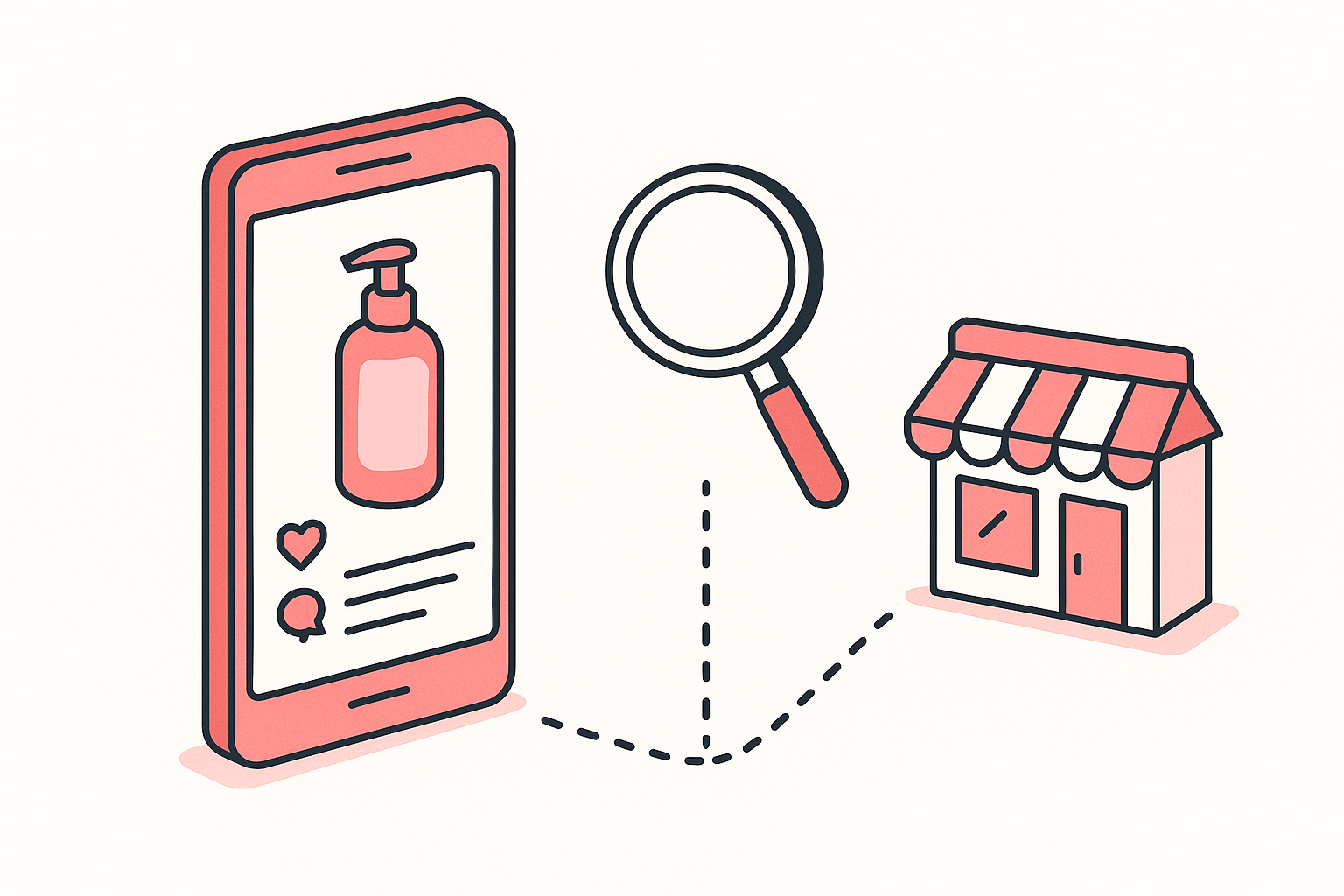
A product crosses your feed, racks up a few million views, and the comments are full of "where do I get this." The reflex is to find the same product on AliExpress and start running ads. The better move is to find the actual store selling it and check whether that store is a real business before you copy anything.
Here is the short version. Start with the link the creator already handed you: the TikTok Shop product page, the link in their bio, or the "Shop now" button on a paid ad. If there is no link, reverse-image search a clean frame of the product, or right-click the image and use Koala Inspector's Find Retailers to pull up the stores selling it. Then open that store and read whether the product is actually one of its best-sellers, whether the store gets steady traffic, and whether it is running ads right now.
A viral clip is not proof the store sells
TikTok moves real money. TikTok Shop in the US passed US$9 billion in GMV in 2024, up about 650% year over year, and around 47.2 million Americans shopped on the platform that year. So the demand is not the question.
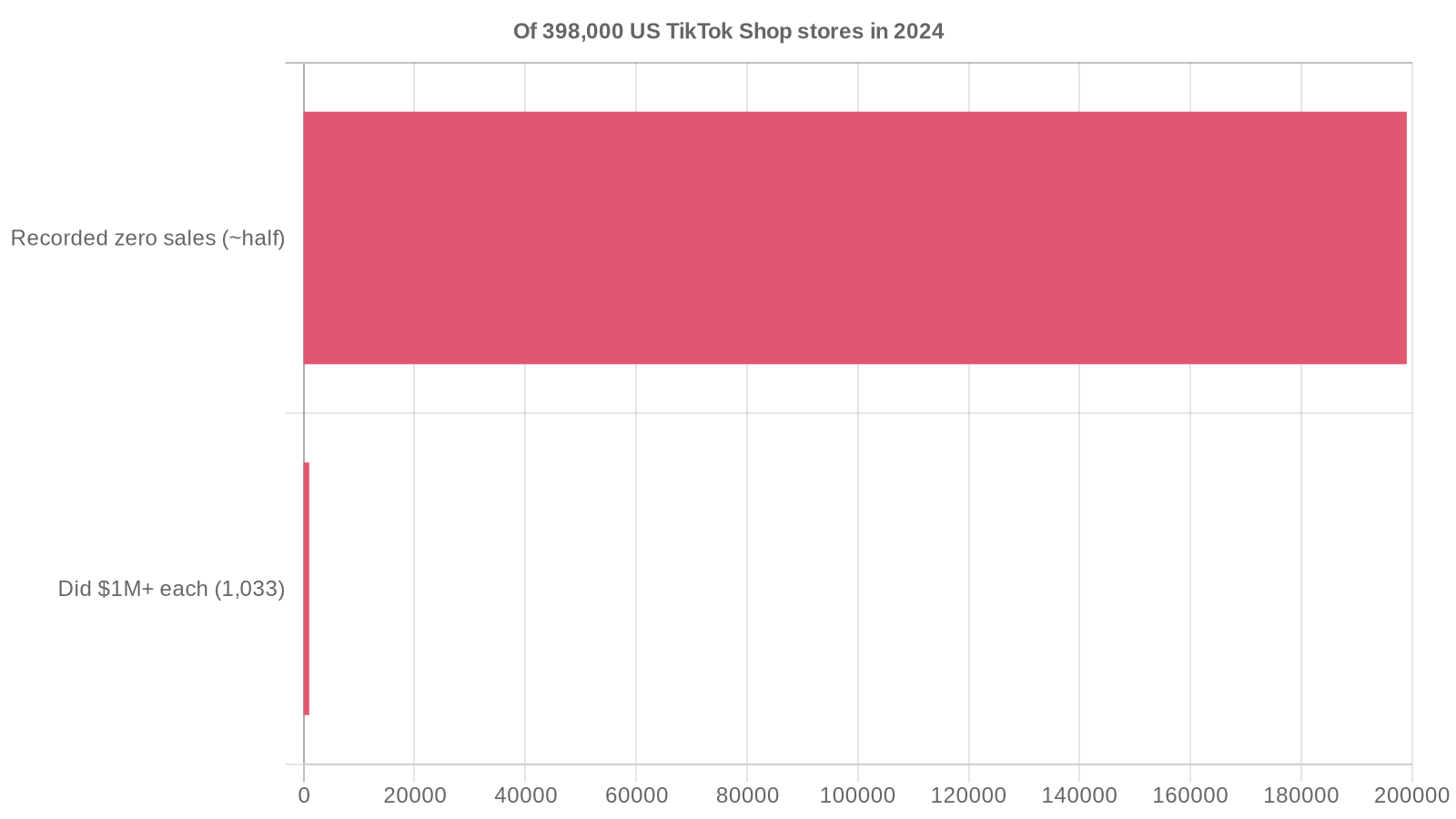
The question is whether the store behind the clip is converting any of that attention. The same report found that nearly half of the 398,000 US TikTok Shop stores recorded zero sales, while a small group, 1,033 stores, did more than a million dollars each. A video can go viral while the store behind it sells nothing, and you cannot tell which from the comments. That gap is the whole reason to track down the store and look at its numbers before you decide the product is worth your ad budget.
Step 1: find the store behind the product
Follow the link first
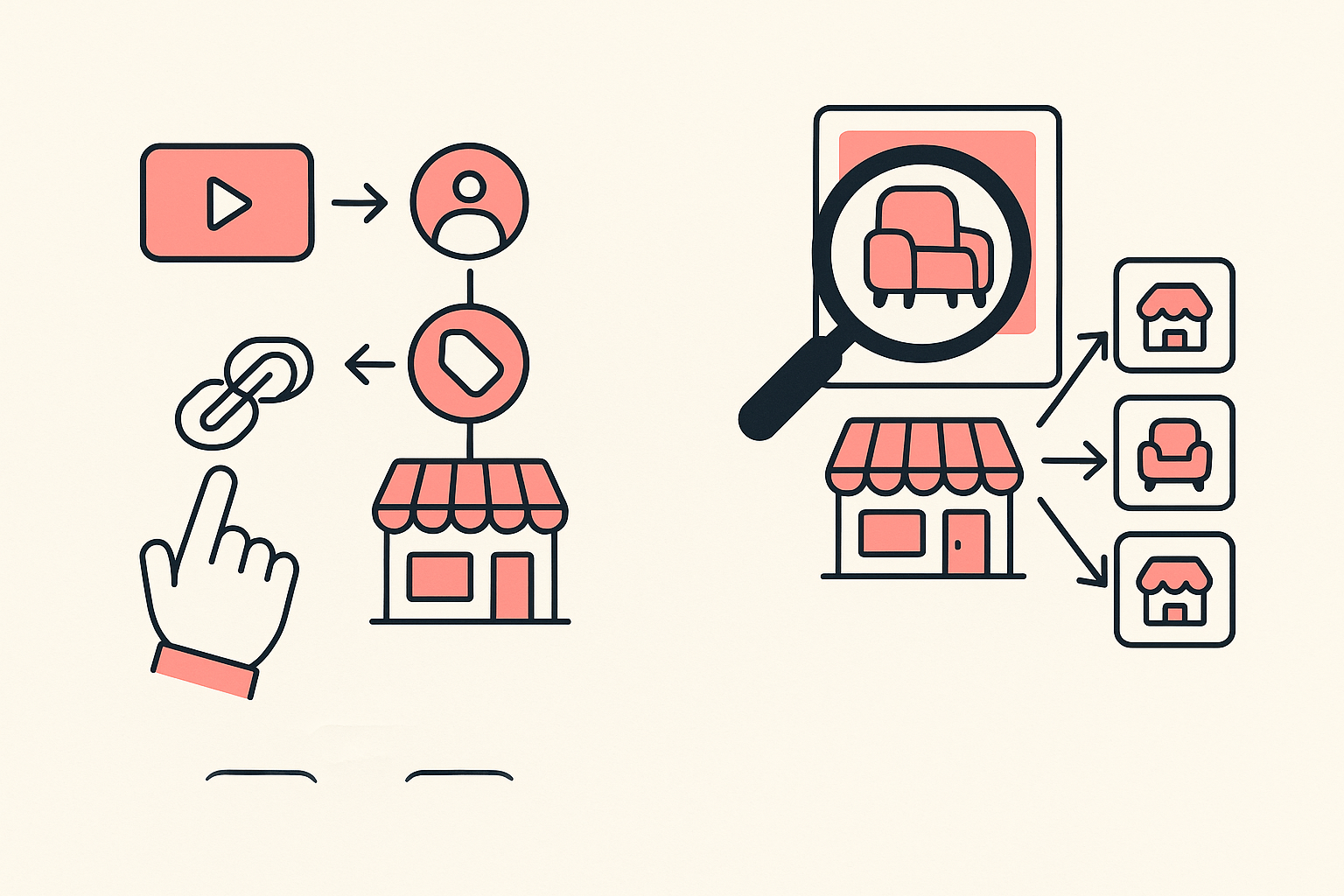
Most of the time the creator has already pointed you at the store. Check, in this order:
- The TikTok Shop product page, if the video has a yellow cart or a pinned product.
- The link in bio on the creator's profile.
- The landing page on a paid ad: tap "Shop now" or the advertiser name and note where it sends you.
Any of these usually drops you straight onto the product page of the store running the offer. That is the page you want open for Step 2.
When there is no link
Plenty of viral videos are organic, with no shoppable link at all. Two ways to find the store anyway:
- Reverse-image search. Screenshot a clean, well-lit frame of the product, crop out the background, and run it through a reverse-image search. You are looking for storefronts selling the same item, not marketplace listings.
- Find Retailers in Koala Inspector. Right-click the product image and choose Find Retailers, and the extension uses image matching to return other stores and retailers selling that product, with prices and links. It is built for exactly this: you have the product in hand and need the stores carrying it. For a deeper walkthrough of locating storefronts, see our guide on how to find Shopify stores.
Once you are on a store, you need to know whether it is a Shopify store, because that is what unlocks the rest of this research. Shopify powers a large share of independent storefronts, with nearly 62,000 of the top one million sites by traffic running on it, so the odds are good. Koala Inspector detects Shopify automatically the moment the page loads and tells you plainly if a site is not on Shopify.
Step 2: check whether the store actually sells
You found the store. Now open Koala Inspector on it and read four things. None of them is the viral video, and that is the point.
- Is the product a best-seller here? Open the store's product research view and sort to its likely best-sellers. If the product you chased sits near the top, the store is genuinely moving it. If it is buried on page nine, the video may have outrun the actual demand.
- Is the store getting steady traffic? The traffic view shows estimated monthly visits, the recent trend, and where the visitors come from. A store climbing month over month with a healthy slice of social traffic is behaving like a real operation. A flat line after a viral spike is a warning.
- Is it spending to acquire customers? The ad campaigns view shows the Google and Facebook/Instagram ads a store is running. A store that is actively buying ads has decided the math works, which is a stronger signal than one video ever is.
- How old and how active is the store? The overview shows the store's creation date, product count, and recent changes. A store that has been live for a while and keeps adding products is a different bet than one that spun up last week around a single clip.

Read all four together. Any one of them can mislead; the combination is hard to fake.
Read the numbers honestly
The sales and traffic figures here are estimates, modeled from public signals any visitor's browser can already see and sampled over time. They are not pulled from the store's private dashboard, and they are not accounting. Use them the way they are meant to be used: to compare one store against another and to watch a trend, not to quote a store's revenue to two decimals. A store that is up and to the right across traffic, best-sellers, and live ads is a real business worth studying. A spike with nothing behind it is a video that happened to do well.
If you want the slower, more reliable read, track the store for a few weeks. A store that keeps shipping new products, swapping in apps, and running fresh ads is scaling. One that goes quiet after its moment was never the opportunity it looked like. For the broader workflow of sizing up a rival store from the outside, our Shopify competitor analysis guide covers the rest, and the best Shopify spy tools roundup compares the options if you want alternatives.
Do this before you copy the product
The trap is treating a view count as a verified business. It is not. The store either sells, in which case its best-sellers, traffic, and ad spend will show it, or it does not, in which case you just saved yourself an ad budget. Find the store, open it, read the four signals, and decide with data instead of a feeling.
Add Koala Inspector to Chrome and run it on the next store you trace back from your feed. It is free to start, works on any public Shopify store, and turns "this looks like it's selling" into something you can actually check.
Written by
Ana Gelevska
eCommerce Content Writer
Ana Gelevska is a content writer with more than five years of experience creating content for eCommerce brands and global clients. She digs into each topic and the people it is for, then turns it into clear, useful articles that Shopify sellers and dropshippers can act on.
Connect on LinkedIn