How to Choose a Shopify Theme for Your Store
 By Ana GelevskaJune 6, 2025 · Updated June 4, 2026
Your Shopify theme is doing two jobs simultaneously: it represents your brand to a visitor who forms an opinion in roughly 50 milliseconds, and it runs the actual mechanics of your store (navigation, filtering, checkout flow, mobile rendering). Get the look wrong and customers bounce. Get the functionality wrong and customers bounce later, right before the sale. Neither is cheap.
The Shopify Theme Store has around 200 themes at last count. That's too many to evaluate one by one, so here's how to cut the shortlist down fast and make a decision you'll still be happy with six months in.
Why Your Theme Choice Has a Bigger Impact Than You Think
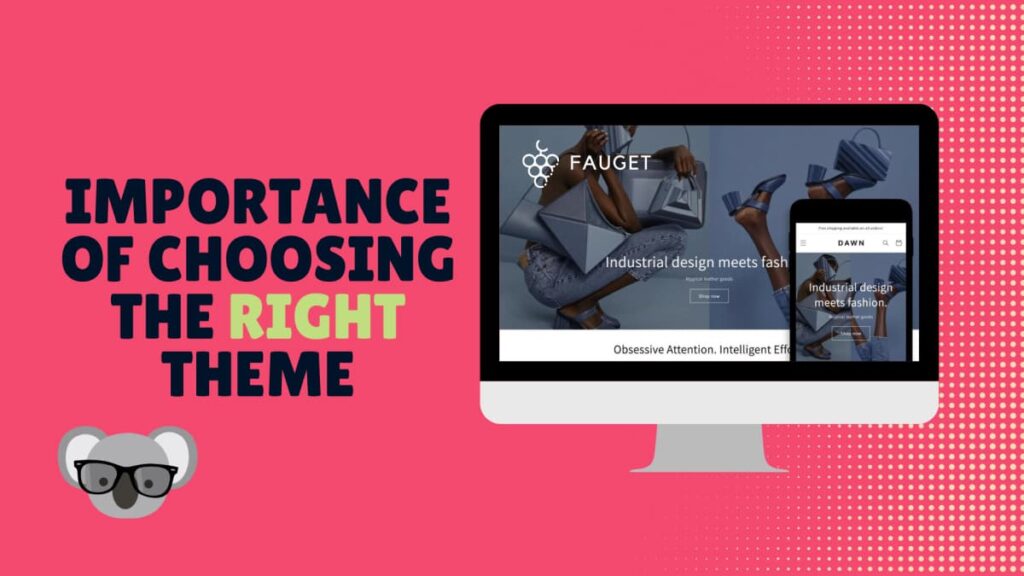
A theme affects three things merchants often treat as separate problems: site speed, user experience, and conversion rate.
On speed: an analysis of 100 popular Shopify themes found that the top performers had load times below 2.5 seconds, while the industry average sits at 7.7 seconds. Slower load times inflate your bounce rate and pull down your search rankings. Before buying, always test how your current or target theme performs on page speed.
On user experience: visitors who can't find what they're looking for inside a few seconds leave. Clear navigation and intuitive filtering are not optional extras, they're what keeps someone on the page long enough to add something to their cart.
On branding: a clothing store targeting teenagers and a jewelry brand targeting adults are not going to share a theme. Your theme sets the visual language of your store in the first few seconds of a visit. Choosing one that conflicts with your audience's expectations makes every marketing dollar work harder.
The Three Questions to Answer Before You Start Browsing
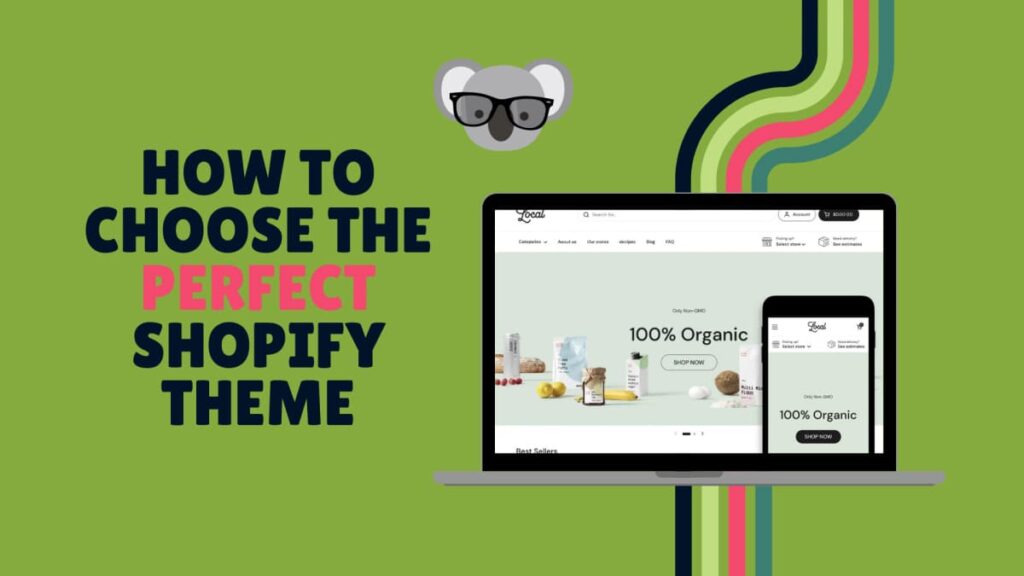
Before opening the Theme Store, answer these three questions. Your answers will knock most themes off the list immediately.
What does your niche look like visually?
Look at the top five stores in your niche. Not to copy them, but to understand what your target customers already expect. A store selling outdoor gear and a store selling wedding stationery will need completely different visual treatments. If your theme feels off-brand for your category, visitors who are familiar with the space will notice, even if they can't say exactly why.
Pay attention to catalog size as well. A theme built for a large catalog (hundreds of SKUs, deep filtering) will feel cluttered applied to a six-product store. The reverse is just as true.
What does your customer actually need to do?
A visitor to a clothing store needs to filter by size, color, and price. A visitor to a furniture store needs large images and a zoom function. A visitor to a subscription box store needs a clear "how it works" layout. The features your theme supports need to match the actions your customers actually take.
Specific features worth checking before you commit: product image zoom, collection filtering (including price range and attribute filtering), quick-add-to-cart, sticky header (keeps the cart accessible while scrolling), and mobile menu behavior. Test these in the demo, not just the screenshots.
What's your actual budget?
Free Shopify themes from the official store are genuinely solid for starting out. They're built by Shopify, they're fast, they get maintenance updates, and they don't require extra apps to run basic functionality. The trade-off is limited design differentiation and fewer built-in features.
Paid themes on the official store run from $140 to $400, one-time (no subscription). That buys you more customization depth, more built-in features (mega-menus, advanced filtering, animations), and dedicated developer support. The cost looks different depending on whether you're validating a new product or scaling an established store.
One warning on third-party marketplaces: themes bought outside the Shopify Theme Store don't go through the same quality review. Performance and security standards vary widely.
Getting Your Branding Right
Color
Most themes ship with preset color schemes and give you control over backgrounds, text, links, and buttons. Color does real work in communicating what kind of store you are:
- Red reads as urgency and energy, common in flash-sale and discount-driven stores.
- Blue reads as calm and trustworthy, used heavily in tech and health categories.
- Green and brown align naturally with organic and eco-conscious product lines.
Whatever palette you choose, make sure it has enough contrast for readable text. Low-contrast themes that look minimal in a demo become frustrating to use in practice.
Layout
Your layout should match your catalog. A teen clothing brand benefits from a bold, image-heavy grid. A luxury jewelry store usually works better with generous white space and a clean minimalist approach. Neither approach is objectively better; the question is which one matches what your customers expect when they arrive.
Typography
Stick to two typefaces at most. More than that and pages start to feel inconsistent. The role of typography is mostly invisible: good font choices make text easy to read and reinforce the mood of the brand without drawing attention to themselves. Most Shopify themes include a few preset font combinations so you can compare them before going live.
What to Look for in Functionality
Product presentation
High-quality image support is the single most important functional feature for most stores. Check whether the theme supports multiple images per variant, zoom on hover or click, and video. For apparel, look for whether size guides can be added inline or whether they require a separate page.
Navigation and filtering
If your catalog has more than a few dozen products, customers need to filter. Check that the theme supports the filter attributes your products actually have: size, color, material, price range. Some free themes offer only basic filtering; paid themes more commonly include multi-attribute filtering built in.
Mobile behavior
More than half of ecommerce traffic is on mobile. Open the theme demo on your phone, not just your desktop. Check the mobile menu, how product images display, whether the add-to-cart button is easy to tap, and how the checkout flow reads on a small screen. Screenshots don't tell you this; you have to test it.
Customization depth
Themes vary considerably in how much you can change without touching code. Look at the theme's documentation to understand what's configurable in the editor versus what requires Liquid/CSS edits. If you're not a developer, a theme with shallow customization will leave you stuck quickly. If you are comfortable with code, even a simpler theme can be extended significantly.
Support
For paid themes, check the developer's track record: how recent are their last updates, what do reviews say about their support responsiveness. A theme that's been abandoned by its developer is a liability.
How to Use the Shopify Theme Store
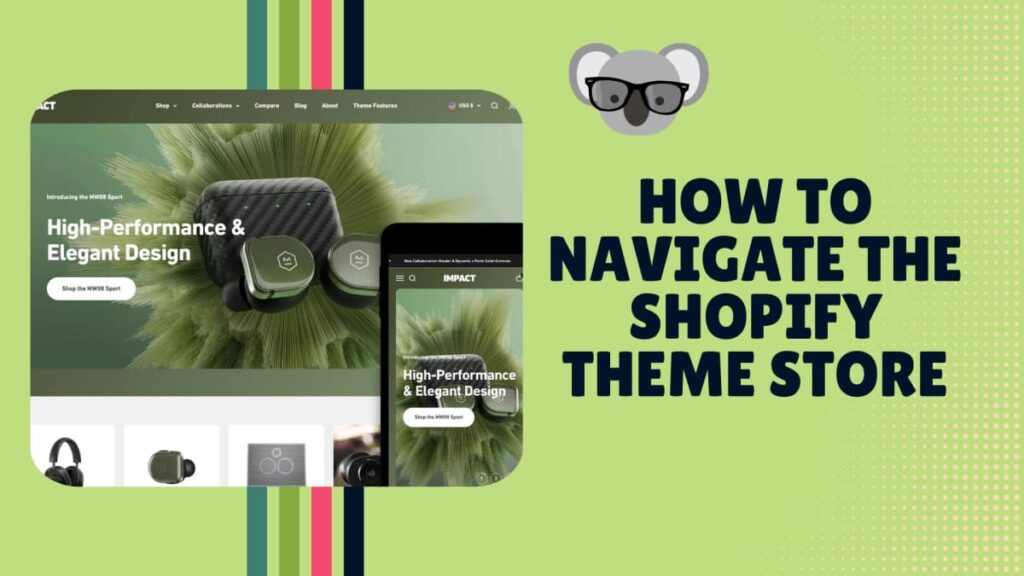
Browse by category
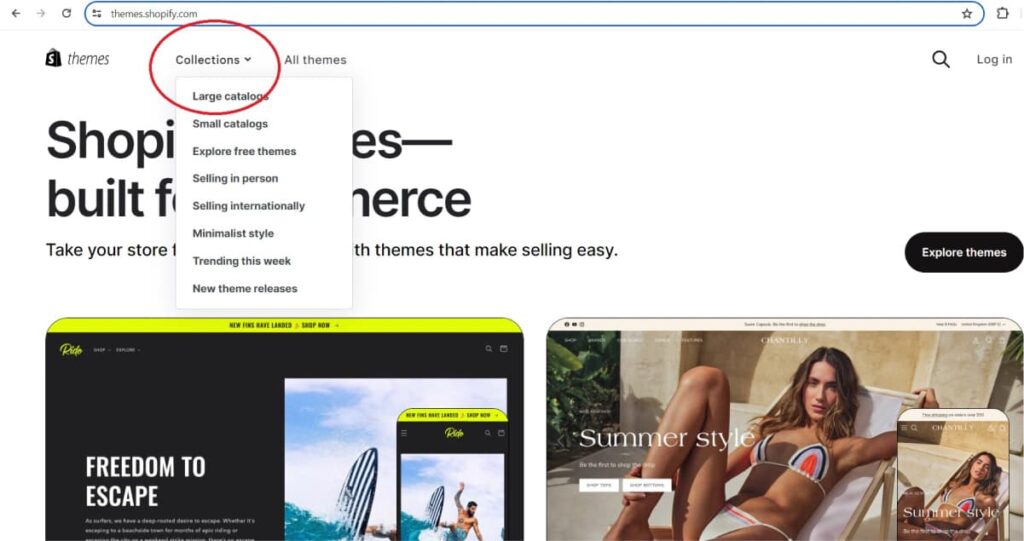
The Theme Store's Collections dropdown organizes themes by style ("Minimalist", "Bold", "Artistic") and by trending or new releases. This is a useful first filter when you have a clear sense of the visual style you're after but haven't picked a specific theme.
The search bar is good for finding themes that have been recommended by name, either in reviews or by other stores in your niche.
Use the filters
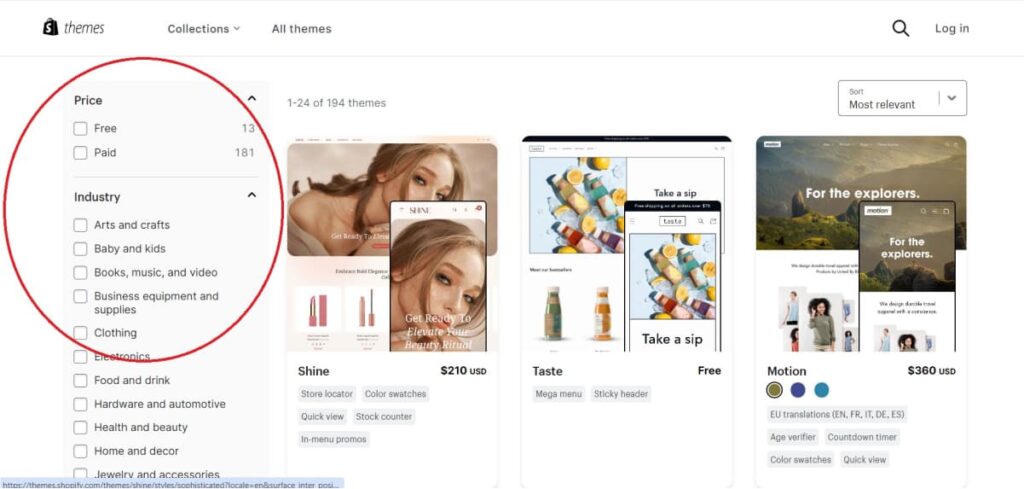
The All Themes view has a sidebar with filters for Price, Industry, Catalog Size, and Features. Industry and Catalog Size are the most useful: they narrow a 200-theme catalog down to a shortlist that's actually relevant to your store type.
- Price: free vs. paid
- Industry: narrows to themes designed for your category
- Catalog Size: matches small, medium, or large inventory
- Features: find themes with specific built-in functionality (age verifier, event calendar, subscription support, etc.)
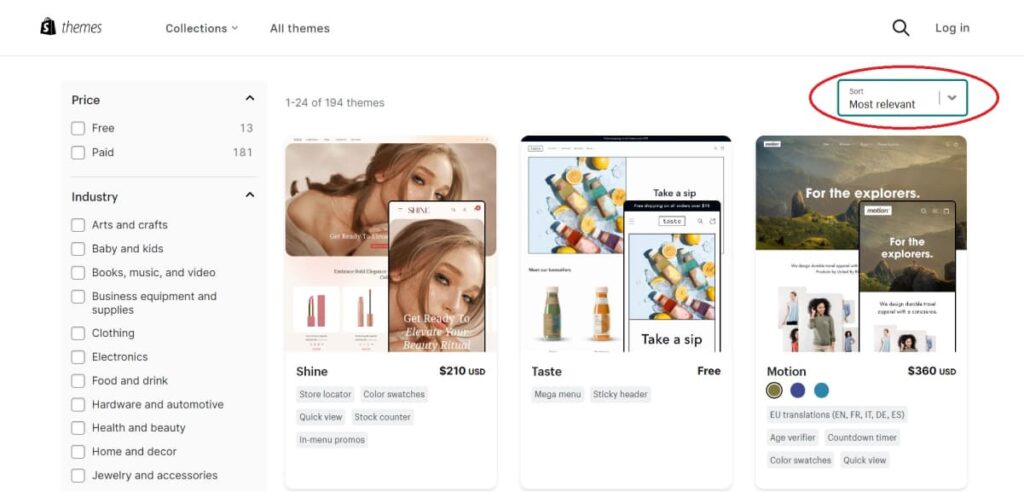
Once you've filtered, sort by Popularity or Most Recent to surface the most-used or freshest options.
Test the demo before committing
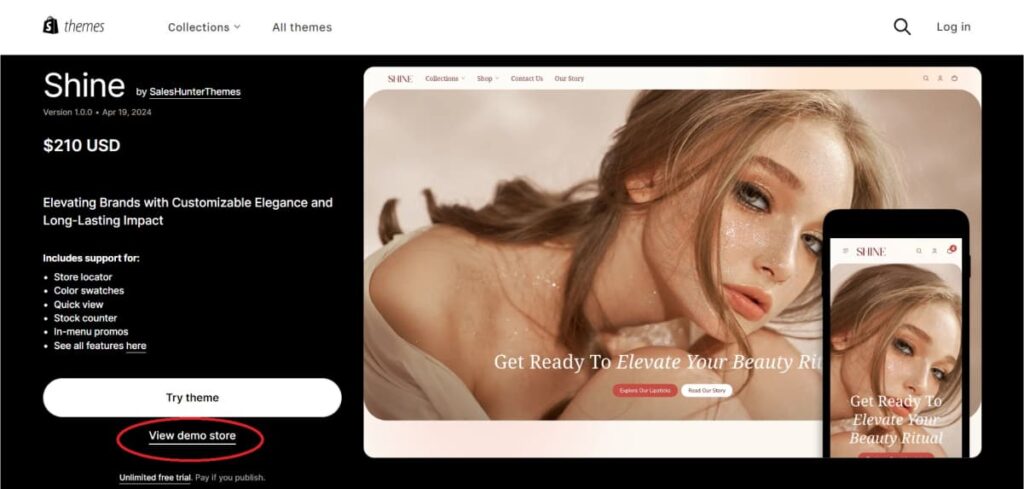
When you've narrowed it to two or three candidates, click through to each theme's demo store. Come in with a list of the three features that matter most to your store and test each one. Check them on mobile. Check the checkout flow. Speed test the demo URL using PageSpeed Insights or a similar tool.
A theme that looks polished in screenshots but runs slowly or behaves poorly on mobile is not a good trade.
Free vs. Paid Shopify Themes
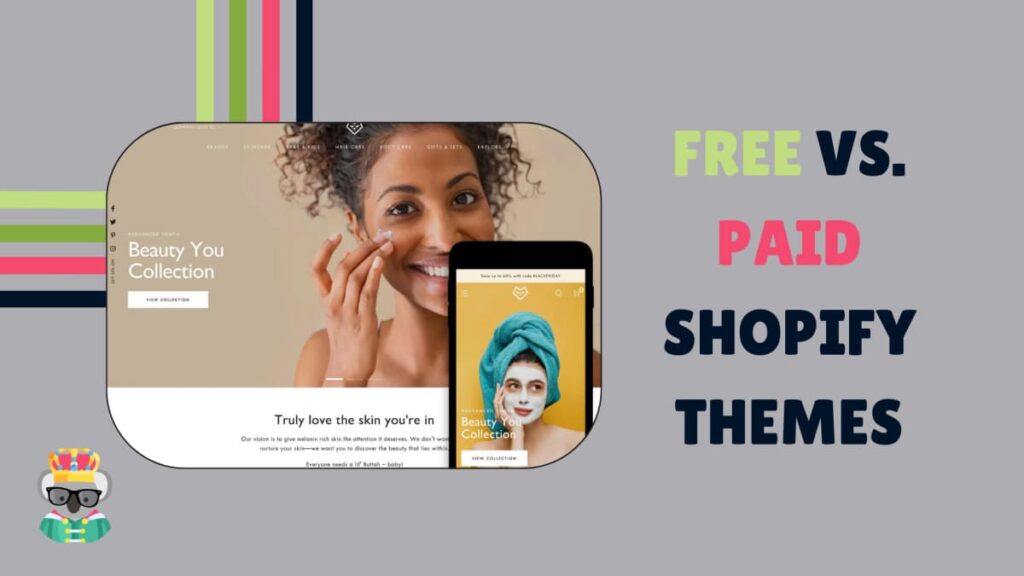
The main practical difference is customization depth and built-in feature set. Here's how they compare:
Free Shopify Themes Pros and Cons
| Pros | Cons |
|---|---|
| No upfront cost beyond your Shopify subscription | Limited design differentiation |
| Maintained and updated by Shopify | Fewer built-in features; you may need extra apps |
| Built for fast loading and mobile responsiveness | Basic technical support only |
| Good foundation for a new store testing the market | Apps added to compensate for missing features can slow the theme |
Paid Shopify Themes Pros and Cons
| Pros | Cons |
|---|---|
| High customization; more control over design | One-time cost of $140-$400, which can be significant for a new store |
| More built-in features (advanced filtering, mega-menus, animations) | Themes from non-Shopify marketplaces don't go through the same quality review |
| Better performance at larger catalog and traffic volumes | |
| Advanced customer support from the developer | |
| Regular updates included |
A note from the community: an experienced dropshipper noted that free-theme stores sometimes outperform expensive ones when the products and traffic source are strong. The $200 theme won't save a store with bad product-market fit. Get your offer right first, then invest in design.
Making the Final Decision
Pick two or three themes that fit your niche, catalog size, and budget. Run the demos on mobile. Check their PageSpeed scores. Read the reviews on the Theme Store, specifically looking for mentions of support quality and whether the developer ships regular updates.
For a broader comparison of themes that have proven track records on real stores, the best Shopify themes list covers options by category, including themes that tend to drive stronger conversion rates.
Your theme is not a permanent decision. Shopify lets you install and preview themes before going live. But switching themes on an established store takes time and can introduce regressions, so it's worth getting it right at the start.
Written by
Ana Gelevska
eCommerce Content Writer
Ana Gelevska is a content writer with more than five years of experience creating content for eCommerce brands and global clients. She digs into each topic and the people it is for, then turns it into clear, useful articles that Shopify sellers and dropshippers can act on.
Connect on LinkedIn